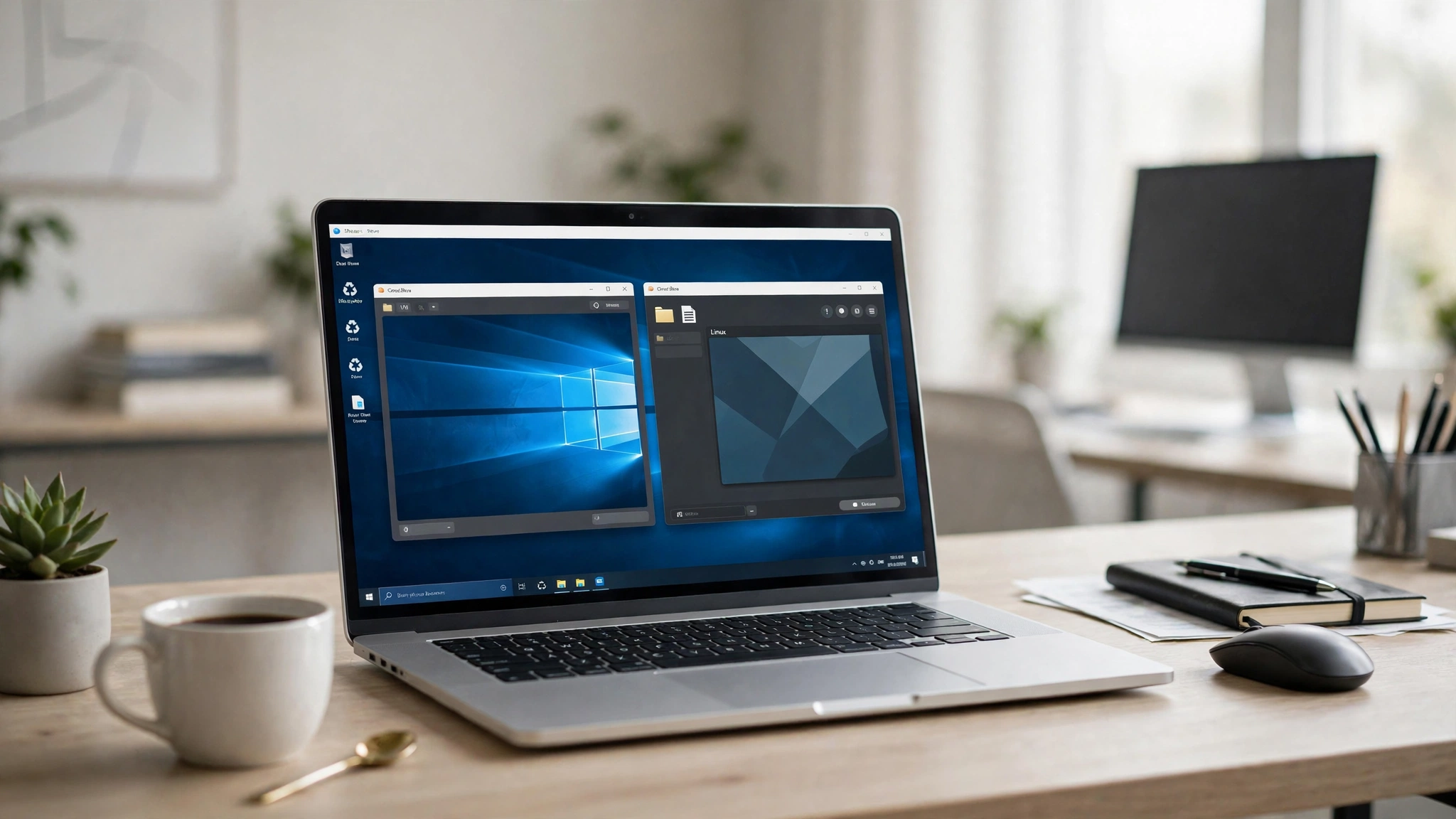
VBox software is the short, common name for Oracle VM VirtualBox.
It lets you run another operating system inside your current computer. You do not need a second PC for this.
That second system is called a virtual machine, or VM for short. It behaves like a real computer, but it lives in a window.
In this guide, you will learn what VBox does, what it costs, and how to set it up safely.
What Is VBox Software?
VBox is a hypervisor. A hypervisor is software that creates and runs virtual machines.
It sits on top of your main system, which is called the host. The system inside the window is called the guest.
For example, your host can be Windows 11. Your guest can be Ubuntu Linux, running in the same session.
You can test software, learn Linux, or open a risky file in that guest. Your main system stays separate in most cases.
VBox supports many guests, including Windows, Ubuntu, Debian, and Fedora. It also works on Windows, macOS, Linux, and Solaris hosts.
According to Oracle’s download page, the current release family is version 7.2. At the time of writing, Oracle lists 7.2.8 as the latest release.
Always check the official site before you download. Version numbers change with security and bug fixes.
Who Owns VBox, and Is It Free?
VBox is developed by Oracle Corporation. It was earlier linked to Sun Microsystems and InnoTek.
The main VBox program is free and open source. It is released under the GNU General Public License, or GPL.
For most home users, the answer is simple. You can download and use the base program for free.
There is one important split to know. The base program is free, but the Extension Pack has a different license.
That pack is free for personal and educational use. Business use needs a paid license from Oracle.
In short, home learning and testing usually cost $0 for the base program. Check the license if you plan to use it at work.
What Your Computer Needs to Run VBox
VBox itself does not need a powerful gaming PC. The guest system is what uses most of your resources.
Your host must share its processor, memory, and disk space with the guest. If you give the guest too little, it will feel slow.
Use these practical targets, not just the bare minimum. They work better for real daily use.
| What you need | Practical target |
|---|---|
| Host memory | 8 GB minimum, 16 GB for smooth use |
| Memory for the guest | 4 GB for a light Linux guest |
| Free disk space | 25 GB to 50 GB per Windows guest |
| Processor | A modern dual-core CPU or better |
| Virtualization setting | Intel VT-x or AMD-V turned on |
Here is a simple, illustrative example for memory. If your PC has 16 GB of RAM, and you give the VM 4 GB, your host keeps 12 GB.
The math is 16 − 4 = 12. That balance usually keeps both systems usable.
Also turn on virtualization in your BIOS or UEFI settings. Without it, many VMs will fail to start or run very slowly.
How to Download and Install VBox
Download VBox only from the official site, virtualbox.org. Third-party download sites may bundle unwanted software.
Follow these steps for a clean install:
- Go to virtualbox.org and open the Downloads page.
- Pick the installer for your host system, such as Windows hosts.
- Run the installer and accept the default options, unless you have a clear reason to change them.
- Allow the network feature install prompt if Windows asks for it.
- Restart your computer if the installer asks you to do so.
- Open VBox and check that the main window loads without errors.
On a Mac, you may need to allow Oracle software in Privacy and Security settings. This step is normal for macOS.
On Linux, your distro may also offer VBox in its own software store. The Oracle version is often newer, so compare before you choose.
How to Create Your First Virtual Machine in VBox
You need an installer file for the guest system first. This file is usually called an ISO file.
For Linux, download the ISO from the distro’s official site, such as Ubuntu. For Windows, get it from Microsoft’s official download page.
Then follow these steps in VBox:
- Click New and type a name for your VM, such as Ubuntu Test.
- Select the ISO file you downloaded for the guest system.
- Let VBox suggest memory and disk size, then adjust them only if you know why.
- Choose a virtual disk size, such as 25 GB for a light Linux guest.
- Click Finish, then click Start to boot the VM.
- Follow the guest install screens inside the VM window.
- After install, remove the ISO from the VM’s storage settings.
- Restart the VM and sign in to your new guest system.
For Windows 11, you also need TPM support turned on in the VM settings. VBox added this support in version 7.0 and later.
On Apple Silicon Macs, such as M1, M2, or M3 models, use an Arm version of the guest. A standard x86 Windows installer will not work there in the same way.
VBox Features That Matter Most in Daily Use
VBox has many settings, but a few features matter most for new users. These three save time and reduce mistakes.
Snapshots: A Safety Net for Your Virtual Machine
A snapshot saves the exact state of your VM at one moment. It saves the system, settings, and disk state together.
You can test an update or a new app, then roll back if it breaks. This makes testing far less stressful.
Think of it as an undo button for the whole guest system. It is not a full backup, though, so keep real backups too.
Shared Folders, Clipboard, and Drag and Drop
A shared folder lets your host and guest exchange files. You pick a folder on your host, and the guest can see it.
The shared clipboard lets you copy text on one system and paste it on the other. Drag and drop works in a similar way for files.
For these features to work well, install Guest Additions inside the guest. Guest Additions is a small add-on from VBox.
It also improves mouse movement and screen size. Without it, the guest window may stay small and feel stiff.
Networking in VBox: NAT, Bridged, and Host-Only
NAT is the default network mode in VBox. NAT means Network Address Translation, a way to share your host’s internet.
With NAT, the guest can reach the internet in most cases. Other devices on your network usually cannot reach the guest directly.
Bridged mode makes the guest look like a separate device on your network. Your router gives it its own network address.
Host-only mode limits traffic to your host and guest. The guest usually has no internet access in this mode.
For most beginners, start with NAT. Switch to bridged only when you need other devices to reach the VM.
VBox Extension Pack Explained
The Extension Pack is a separate add-on from Oracle. It is not part of the base VBox download.
It adds USB 2.0 and USB 3.0 device support. It also adds remote desktop access, disk encryption, and network boot support.
Network boot is called PXE boot. It lets a computer start from a network server instead of a local disk.
You must match the Extension Pack version to your VBox version. For example, VBox 7.2 needs the 7.2 Extension Pack.
To install it, open VBox, go to Tools, then Extensions, and add the downloaded pack file. Accept the license shown on screen.
Remember the license split from earlier. Personal and educational use is free, but commercial use needs an Oracle license.
VBox vs VMware Workstation Player
VMware Workstation Player is the closest free rival to VBox. Both are Type 2 hypervisors, which run on top of a host system.
VBox is open source in its base form and works on Windows, macOS, and Linux hosts. VMware Workstation Player works on Windows and Linux hosts.
VMware users on Mac need VMware Fusion instead. That is an important difference if you use a Mac.
| Feature | VBox | VMware Workstation Player |
|---|---|---|
| Base cost for personal use | Free | Free for personal use |
| Snapshots in the free version | Yes | Limited in Player |
| Host systems | Windows, macOS, Linux, Solaris | Windows, Linux |
| Cloning in the free version | Yes | Limited in Player |
| Best for | Free learning and testing | Smooth Windows performance |
Many users find VMware feels a bit smoother on the same hardware. VBox often wins on free features and cross-platform use.
Choose VBox if you want snapshots and cloning without paying. Choose Player if you mainly run Windows VMs and value smooth speed.
Common VBox Problems and Simple Fixes
Most VBox problems have simple causes. Check these fixes before you reinstall everything.
If the VM will not start, check virtualization in BIOS or UEFI. Turn on Intel VT-x or AMD-V, save, and restart your PC.
If the VM is very slow, you may have given it too little memory or too few CPU cores. Close heavy host apps, or raise the VM memory a little.
If the guest has no internet, check that NAT is selected in network settings. Also check that your host internet works outside VBox.
If USB devices do not show up, you likely need the Extension Pack. Install the matching version, then restart VBox and the VM.
If copy and paste does not work, install Guest Additions in the guest. Then set Shared Clipboard to Bidirectional in the VM settings.
Is VBox Safe and Legal to Use?
VBox itself is safe when you download it from Oracle’s official site. It is widely used by students, developers, and IT teams.
A VM adds a layer of separation, but it is not perfect protection. Malware in a guest can still reach shared folders or the network.
Do not treat a VM as a safe place to run known malware. Keep your host updated, and avoid risky downloads in both systems.
Legality depends mainly on the guest system license. Linux guests are usually free to use, but Windows needs a valid license.
Do not use pirated ISO files or license keys. Get Windows and other paid systems only from their official sources.
FAQs About VBox Software
Is VBox software really free?
Yes, the base VBox program is free and open source. The Extension Pack is free for personal and educational use, but business use needs a license.
Can VBox software run Windows 11?
Yes, it can run Windows 11 as a guest on a capable PC. You need enough memory and disk space, plus TPM support turned on in the VM settings.
Does VBox software work on Apple Silicon Macs?
Yes, newer VBox versions support Apple Silicon Macs. You must use an Arm version of the guest system, not a standard x86 installer.
Do I need the VBox Extension Pack?
No, you do not need it for basic use. You need it for USB 2.0 and 3.0 support, remote desktop access, and disk encryption.
Can a virus in a VM infect my main computer?
It is possible in some cases, especially through shared folders or network access. Keep both systems updated, limit sharing, and do not run known malware in a VM.
Conclusion
VBox software gives you a free way to run a second system inside your PC. It is made by Oracle, and its base program is open source.
It works best when your PC has enough memory and disk space. Snapshots, shared folders, and NAT networking make daily testing much easier.
The Extension Pack adds useful extras, but it has a separate license for business use. VMware Player is a solid rival, mainly for smooth Windows VMs.
Your practical next step is simple. Download VBox from virtualbox.org, then create a light Linux VM first to learn the basics safely.
Related Articles
KAIYUN SPORTS: The Growing Influence of Online Sports Entertainment in Asia
How to Maintain Weight Loss After Wegovy: Tips and Strategies